Your new site is live, Google can find it, and the first enquiries are coming in. Now it needs looking after, because a WordPress site nobody maintains is an easy target.
A WordPress security checklist for a small business comes down to eight checks: keep everything updated, delete what you don't use, lock down logins, limit who has access, add a firewall, keep backups you've tested, use HTTPS, and watch the site.
Most of them need no developer at all. They just need doing on a schedule.
Plugins are where most of the risk sits. Of the 46,000-plus WordPress vulnerabilities Patchstack has recorded, 92% were in plugins. So that's where this checklist starts.
Why Do WordPress Sites Get Hacked?
WordPress sites usually get hacked through an outdated plugin, a weak login, or an old account nobody removed, not through WordPress itself. The core software is rarely the weak spot. What you add to it is.
The numbers back this up. Patchstack, which tracks WordPress vulnerabilities, found 11,334 new ones in 2025, up 42% on the year before. Across everything it has recorded, 92% are in plugins, 7% in themes, and just 1% in WordPress core.
Speed matters too. For the most heavily attacked flaws, Patchstack measured a median of about five hours from public disclosure to mass attacks. That's faster than most owners open their dashboard.
Logins are the other open door. Bots try common and leaked passwords on login pages around the clock, and an old admin account that belonged to a former employee or agency is a door nobody is watching.
Being small doesn't protect you, either. These attacks are automated. Bots scan the web for a known weakness, so a five-page small business site gets the same attention as a big one.
The WordPress Security Checklist: 8 Checks for Small Businesses
These eight checks close the doors most attacks come through: plugins, logins, access and missing backups. Work through them once now, then keep them on the schedule in the next section.
1. Keep WordPress, plugins and your theme updated
Updates are where security fixes arrive, so this check does the most work. WordPress installs its own minor security releases automatically on most hosts. Plugins and themes are on you.
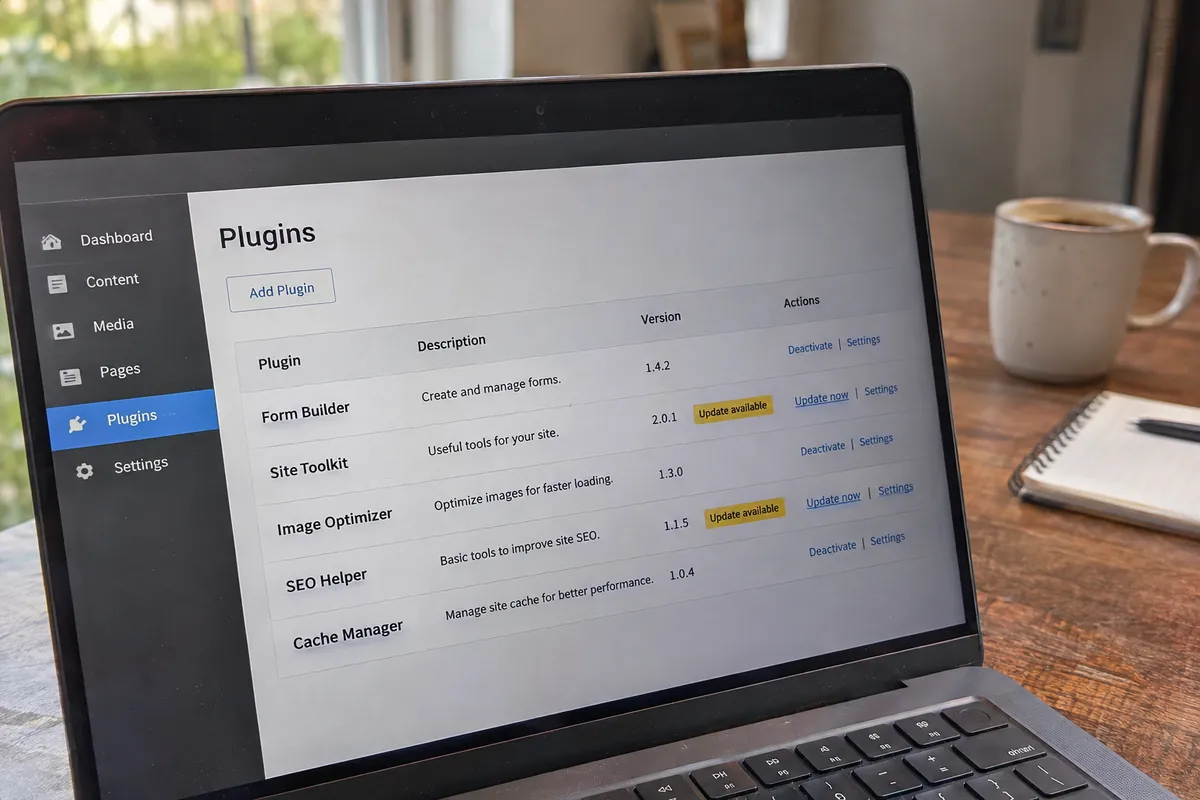
Take a backup first, then update. For plugins you trust, switch on auto-updates from the Plugins screen. After any big update, open your site and test the contact form.
2. Delete plugins and themes you don't use
A deactivated plugin is still code sitting on your server. If you're not using it, delete it, and keep just one spare theme.
Before installing anything new, check when it was last updated and how many sites use it. Don't assume paying for a plugin makes it safer, either. Patchstack found premium plugins had three times more actively exploited flaws than free ones.
3. Lock down your logins
Every login needs a long, unique password, ideally from a password manager. Then turn on two-factor authentication (2FA), so a stolen password on its own isn't enough to get in.
Finally, limit login attempts. That stops bots from guessing passwords thousands of times. Most security plugins handle both 2FA and login limits.
4. Give everyone their own login, with only the access they need
Never share one admin account. Give each person their own login, and the lowest role that lets them do their job. Someone who writes blog posts needs Author or Editor, not Administrator.
When a staff member, freelancer or agency moves on, remove their account the same day.
5. Add a firewall and malware scanner
A firewall blocks known attacks before they reach your site. A malware scanner checks your files for code that shouldn't be there.
You can get both from a security plugin, such as Wordfence, Solid Security or Sucuri, or from a host that provides them at server level. One good setup is enough. Two security plugins tend to clash.
6. Keep backups you control, and check what's in them
Back up automatically, at least daily for a site that changes often. Good WordPress backups run on their own. Store copies somewhere other than your web server, such as cloud storage, so one problem can't take out the site and its backups together.
Then check what a backup actually contains. Some popular backup plugins leave out your site's settings file, wp-config.php, unless you add an extra or premium option. A backup you've never opened is only a hope. Test a restore at least once.
If you serve customers in Singapore, this isn't optional. Under the PDPA, a business that collects personal details, even through a contact form, must make reasonable security arrangements to protect them, and the PDPC has penalised businesses for weak access controls.
7. Use HTTPS everywhere and switch off the file editor
Your site should load on https:// on every page, with no browser warnings. Most hosts include a free SSL certificate.
Next, switch off WordPress's built-in file editor. It lets anyone with an admin login rewrite your site's code from the dashboard. Some security plugins have a switch for this. Otherwise, ask your developer to add one line to the site's settings.
8. Watch the site
Problems you don't see can run for weeks. Set up a free uptime monitor that emails you if the site goes down. Keep an activity log, so you can see who changed what and when.
Check Search Console's Security Issues report too. Google uses it to warn you if it has found hacked content or malware on your site.
How Often Should You Run These Checks?
Run the quick checks weekly, the reviews monthly, and the deeper checks every quarter. Security plugins and auto-updates handle much of the daily work, so keeping your website secure takes a short routine, not a lot of hours.
| How often | What to do |
|---|---|
| Once, at setup | Turn on 2FA and login limits, give everyone their own login, add a firewall and scanner, switch off the file editor, set up uptime alerts |
| Weekly | Update plugins and your theme after a fresh backup, then test your contact form and booking link |
| Monthly | Skim the activity log and malware scan results, check Search Console's Security Issues report, confirm backups are landing off-site |
| Quarterly | Remove old user accounts, delete unused plugins and themes, test a backup restore |
Put these on your calendar the same way you would a bookkeeping deadline. A routine that runs on a schedule beats a big clean-up after something goes wrong.
What Should You Leave to Your Developer or Host?
Leave anything that edits your site's core files or server settings to your developer or host. Many longer checklists include these steps, and they matter, but one wrong change can take the whole site offline.
That covers:
- Changes to wp-config.php, the file that holds your database login
- File permissions and the .htaccess file
- Changing the database table prefix
- Updating the PHP version your site runs on
- Adding security headers
Be careful with plugin settings, too. Some security and caching plugins save their settings by rewriting these same files. If that write fails, for example because the server's disk is full, the file can be left broken and the site goes down.
Before you click Save on a security or caching setting, know what it changes. If you're not sure, ask first. This is exactly the kind of work a WordPress support service covers.
Frequently Asked Questions
How do I know if my WordPress site has been hacked?
Look for admin users you didn't create, plugins you didn't install, strange redirects, or a sudden drop in search traffic. Google may also flag it in Search Console's Security Issues report. If you see any of these, change every password and call your developer or host.
Do I need a security plugin if my host is secure?
Usually, yes. A good host protects the server, but it won't add 2FA to your logins or remove an old admin account. If your host already runs a firewall and malware scanning, use a plugin only for what's missing, such as login protection.
Is WordPress safe for a small business in Singapore?
Yes, when it's maintained. Only about 1% of recorded WordPress vulnerabilities are in WordPress itself. The risk comes from outdated plugins and weak logins, which this checklist covers. Keeping it maintained also helps you meet your PDPA duty to protect customer data.
How often should I update WordPress plugins?
Check for updates at least weekly, and install security fixes as soon as they appear. Attacks on popular flaws can start within hours, so switch on auto-updates for plugins you trust.
The Bottom Line: Security Is a Routine, Not a Plugin
No single plugin keeps a WordPress site safe. What keeps it safe is a short routine: updates, a tidy plugin list, locked-down logins, backups you've checked, and someone keeping an eye on things.
Most hacks come through the same few doors, and this checklist closes them. Do the setup once, put the weekly and monthly checks on your calendar, and leave the core files to a professional.
If you'd rather hand the routine to someone who does it every day, book a free 1:1 discovery call with Tricia at AZENCE.